
Tutorial
Creating and Using Templates with GPT
Step 1: Create Your PowerPoint Template
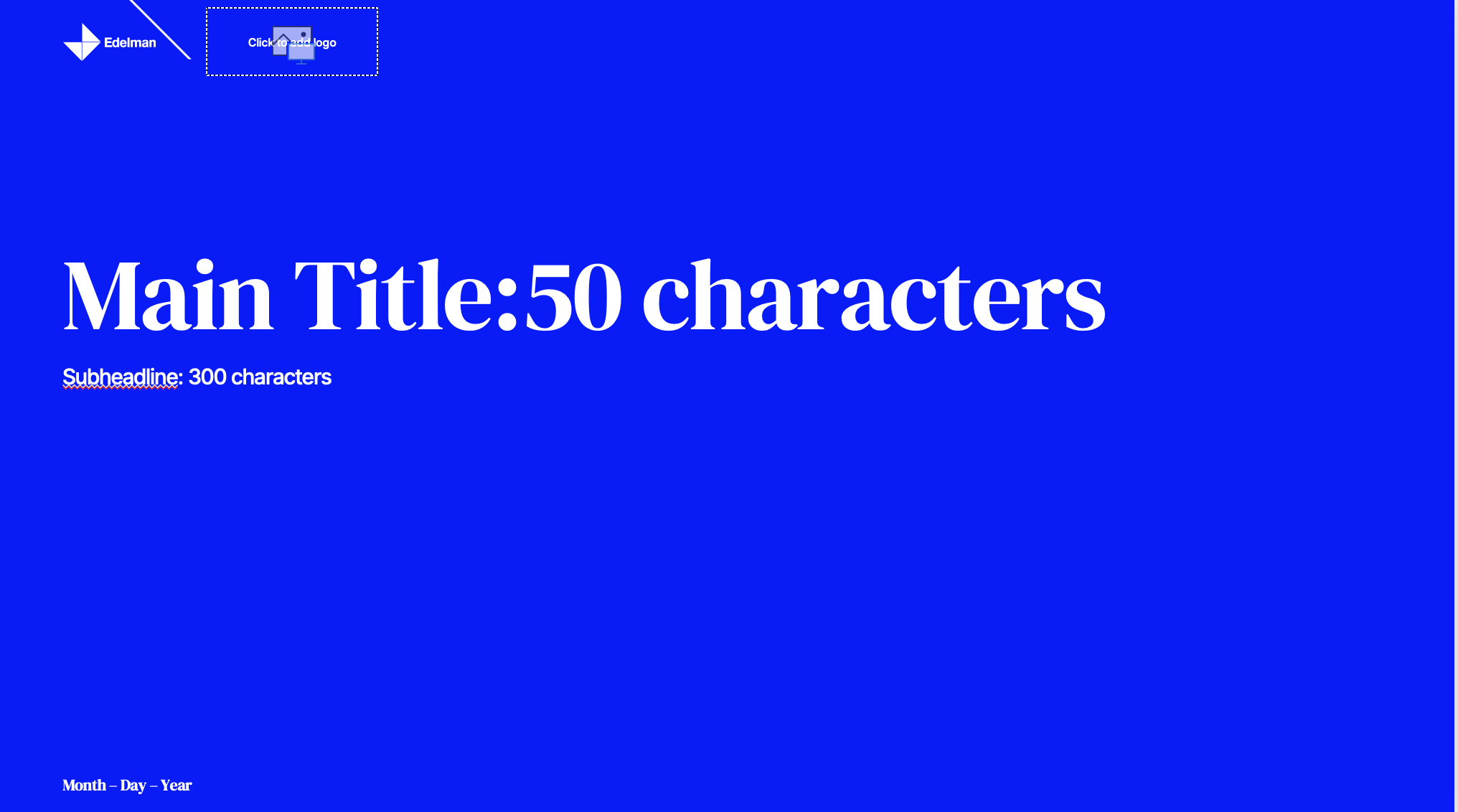
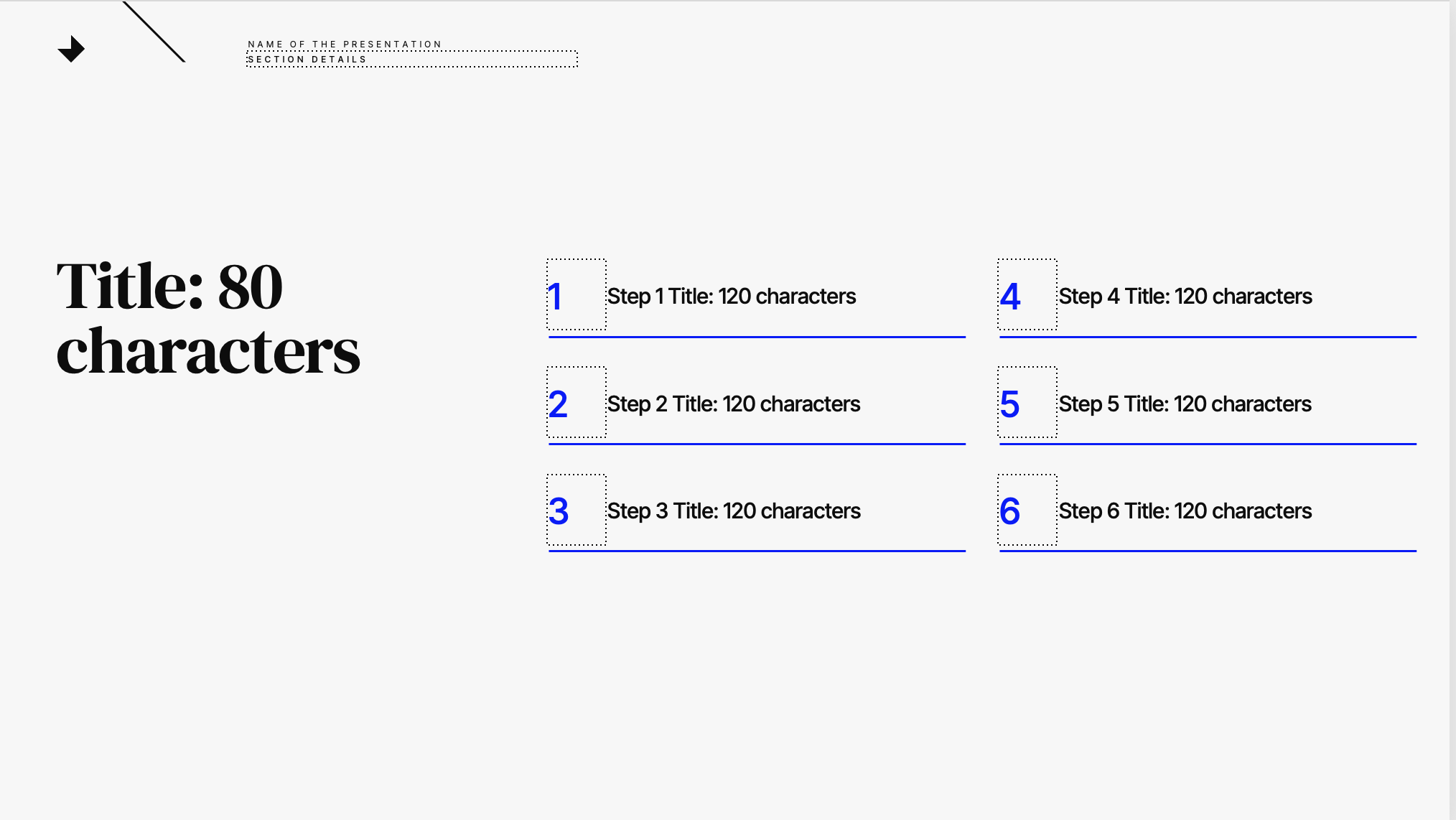
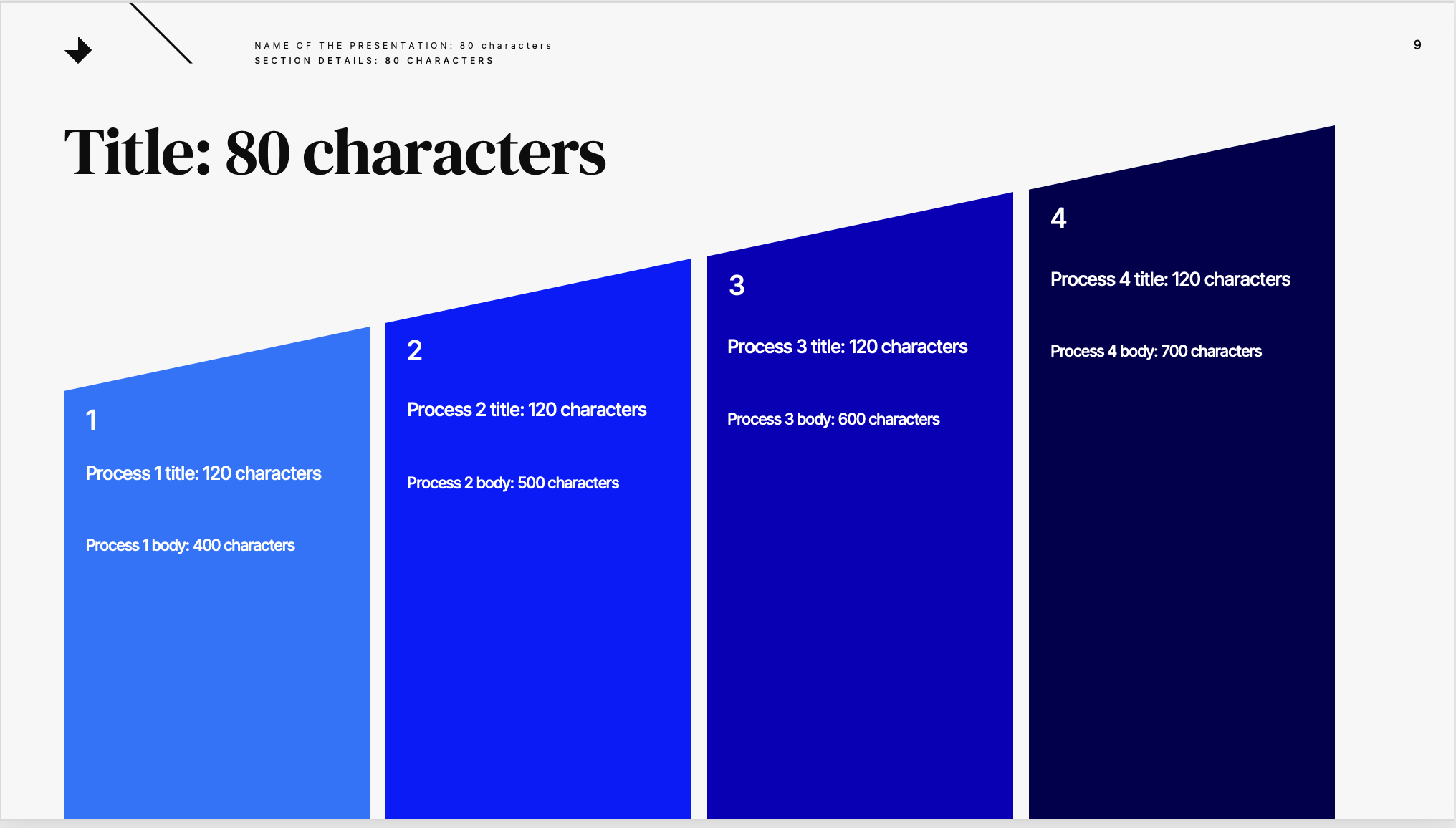
Use slide masters to define your layout styles. For each layout you'd like the AI to support, create a corresponding slide in the main deck.
- Ensure each slide uses one of the master layouts and has editable areas correctly defined.
- Insert sample images in image placeholders to act as visual anchors.
- In each text box, include descriptive instructions and optional length limits using the format:
Section title:40char
The better the templates are the better the final result will be, make sure you test your template and the character guides.
Step 2: Upload the Template to the App
- Log in to the Admin Dashboard. (Speak to Myles Cameron if you need access.)
- Upload your PPTX file and a thumbnail image.
- Add a name and notes to describe your template.
- The app will extract editable fields and validate your file.
- Use the test feature to generate a sample PPTX and check layout and formatting.
Step 3: Add the Template to Your GPT
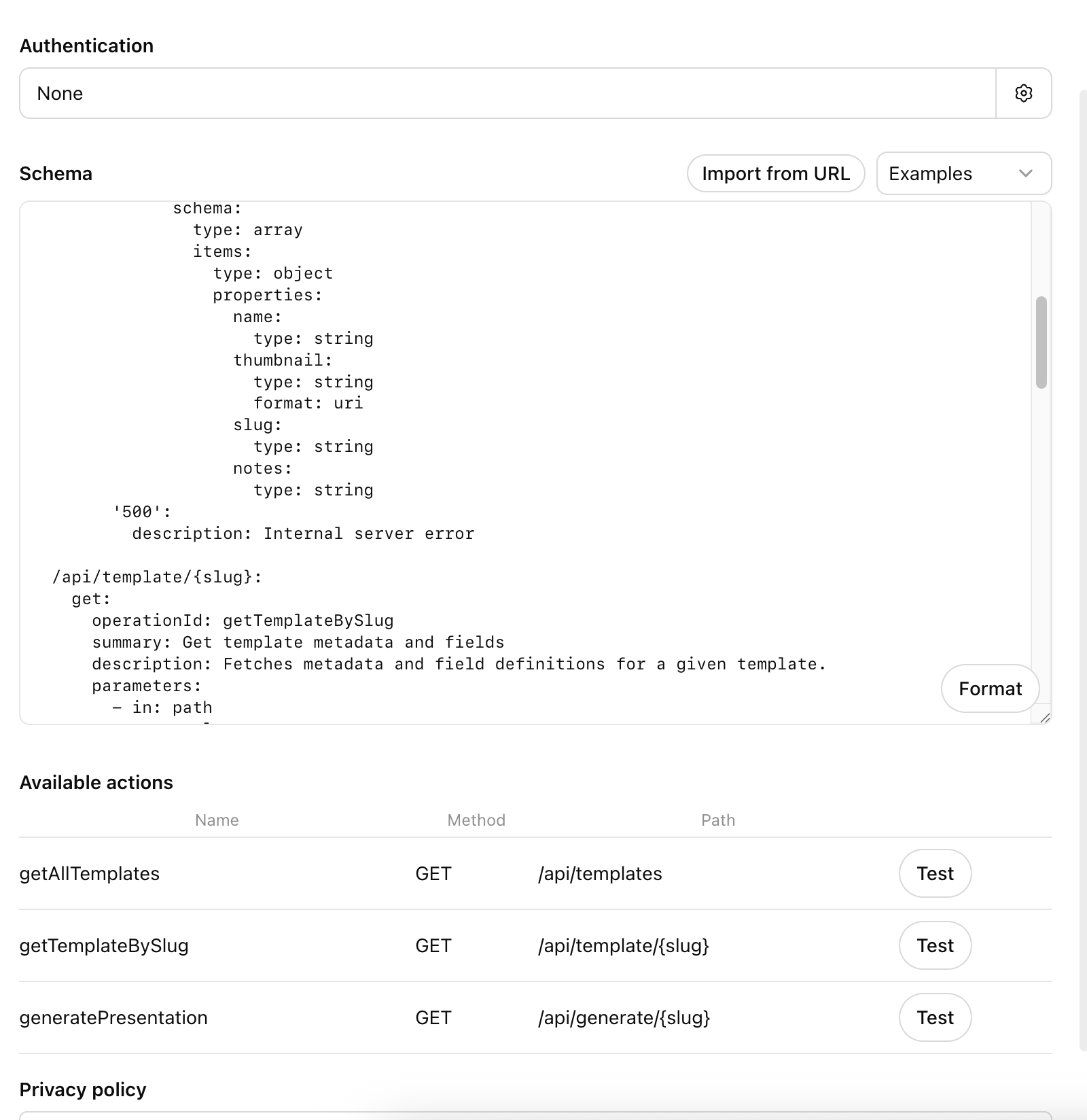
- From the homescreen or admin dashboard, click the Copy GPT Action button. This will automatically copy the config.
- Open your GPT configuration in the OpenAI platform.
- Go to your Custom GPT configuration.
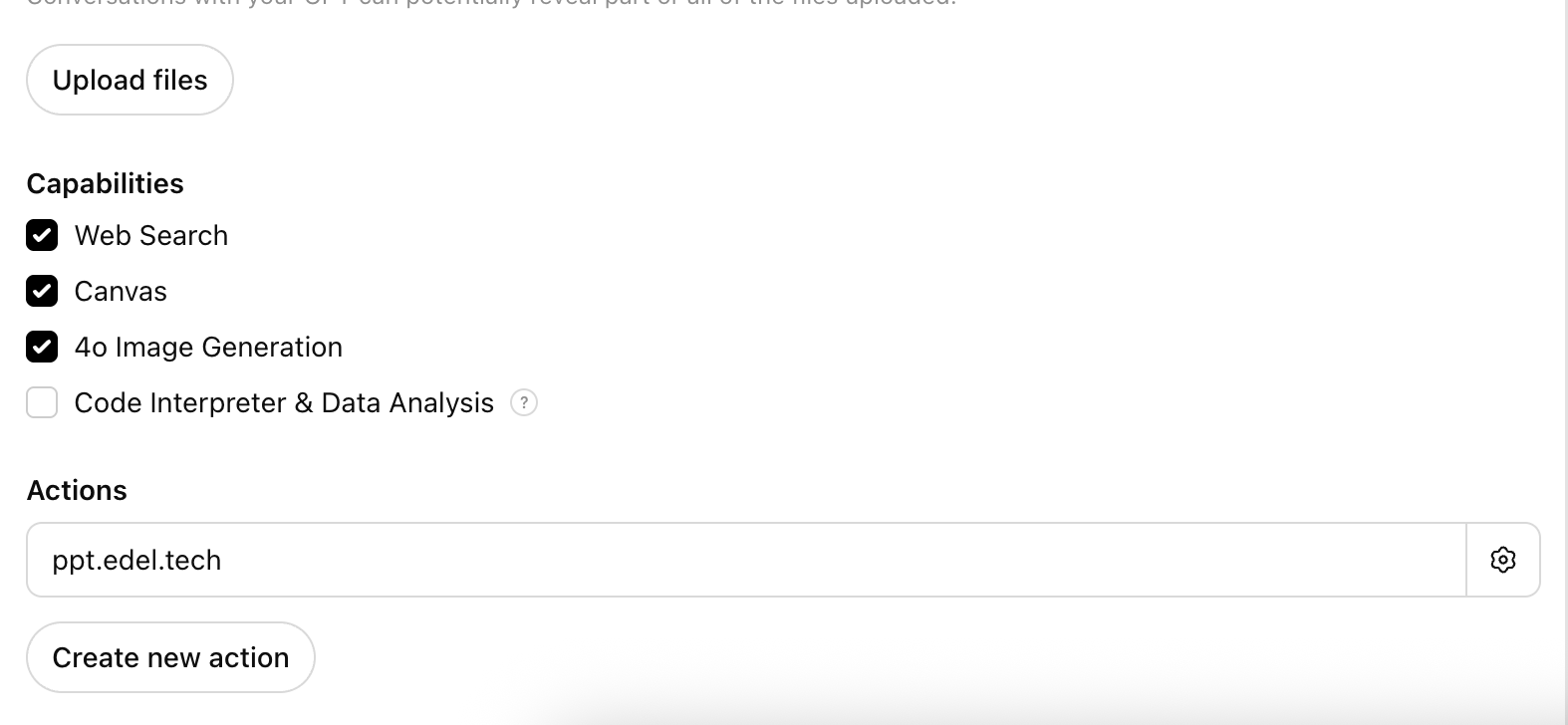
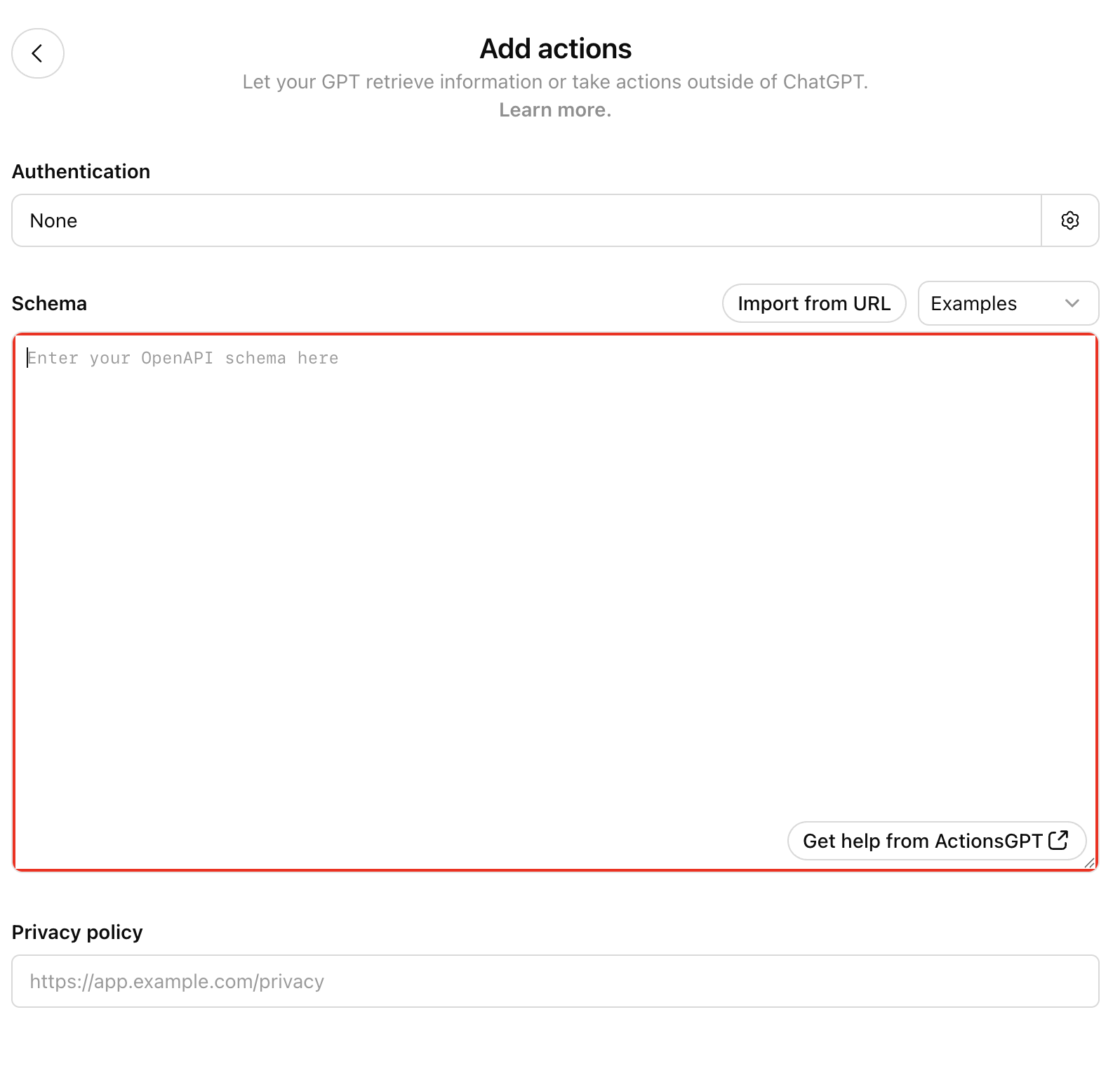
- Scroll to the bottom and click "Add Action".
- Paste the config into the action window.
You should see a configuration similar to the one below, with two "Available actions"; getTemplateBySlug and generatePresentation
Configuration screen:
Action Input screen:
Example action setup: